Digital Business Card vs Paper Business Card: Do You Need Both?
A digital vCard is easy to share and update, and a printed card works with no phone at all. See how they compare, when each one wins and how to combine them with a QR code.
The short answer: for many small businesses it is not either-or, and using both works best. A printed business card is what you hand to someone in person, and it needs no phone, battery or signal. A digital business card, or vCard, is a contact page that you share by link or QR code and can update without reprinting anything. The best setup is a paper card that carries a QR code to your vCard or to WhatsApp.
This guide compares a digital business card vs a paper business card side by side, shows which one wins in everyday situations (events, job sites, referrals, older customers, door-to-door) and explains how to combine them. It also covers QR code layout, so the code scans the first time.
What is a digital vCard?
A digital vCard is a contact page that opens from a link or a QR code. On it, people can tap to call you, message you on WhatsApp or email you, see your location and services, and save your details to their phone. The name comes from vCard, the standard contact file format (.vcf) that phones and email apps understand.
Some digital cards are shared with a tap on an NFC tag or card. The digital vCard in our shop is shared with a link and a QR code. Its product page lists what it includes, such as call, WhatsApp and email buttons, social links, a map location, a gallery section, a downloadable contact file and a QR code ready to print.
Most current smartphones can scan a QR code with the built-in camera, so the person receiving your card does not have to install anything.
Digital business card vs paper business card: side by side
| Feature | Printed card | Digital vCard |
|---|---|---|
| Needs a phone, battery or signal | No | Yes, for the person receiving it |
| Handing it over | Instant, in person | Scan a QR code or send a link |
| Updating your details | Reprint the cards | Change the page; the link stays the same |
| Room for information | A few lines | Services, photos, a map, social links |
| Saving your contact | The person types it in | One tap to save, if the page offers it |
| People who avoid scanning | Works for them | May not work for them |
| Sharing at a distance | Not possible | Send the link by WhatsApp, text or email |
| Something physical to keep | Yes | No, unless the card is printed too |
Which one wins in your situation?
| Situation | Better choice | Why |
|---|---|---|
| Event, fair or trade show | Both | Hand over a card in seconds, and the QR code carries the full details |
| Job site, gloves on, hands full | Printed | No phone or signal needed, and the customer keeps it where they will see it |
| Older customers or people who prefer paper | Printed | Nothing to scan and nothing to open |
| Door-to-door or a counter drop | Printed | You leave something physical behind |
| A happy customer recommends you | Both | They hand over your card, and the QR code opens your page |
| Contact over WhatsApp, text or social media | Digital | A link can be sent in a message, and a paper card cannot |
| Clients in another city or state | Digital | Send the link instantly |
| Details that change often | Digital | Update one page instead of reprinting |
| A lot to show: services, photos, map | Digital | A page has room that a card does not |
If your situation fits two rows, that is the point: each one covers the other’s gaps.
What each one cannot do
Every format has limits, and knowing them helps you choose.
A printed card cannot:
- change after it is printed, so a new phone number or website means new cards
- hold more than a few lines of information
- save itself into someone’s phone
- reach a person who is not standing in front of you
A digital vCard cannot:
- work if the person has no phone, no signal or no wish to scan
- sit in a wallet or on a desk as a physical reminder
- stay private, because anyone with the link or QR code can open it
The best setup: a paper card with a QR code
Combining the two takes four steps:
- Choose what the code opens. Your vCard, a WhatsApp chat or your website. Pick one destination.
- Leave room for it. On a standard card, the back is a good place. Our business card size and design guide shows how to lay it out.
- Say why to scan. A short line such as “Save my contact” or “Message us on WhatsApp” next to the code.
- Test before you order. Print a sample at actual size and scan it with two different phones.
Keep the printed essentials too: your name, what you do and one phone number. If the code fails, or the person simply does not scan, the card still does its job.
Before you print any QR code, ask who controls the link behind it. If it belongs to a service you might stop paying for, the printed code can stop working. A link on your own website, or a page you control, is safer. For the vCard in our shop, hosting and updates are part of the listing, and the product page has the terms.
QR code layout tips so it scans the first time
- Size. Do not print it smaller than about 0.8 inch (2 cm) on a side. A shorter link makes a simpler code that scans better when small.
- Quiet zone. Keep a blank margin around it, about the width of four of its small squares. Text, lines and photos should not touch it.
- Contrast. Dark code on a light background. Avoid pale brand colors, gradients and busy photos behind it.
- Shape. Never stretch it. A QR code must stay square.
- Position. Keep it away from a fold, an edge or anything that could be trimmed. Inside the safe zone is the rule.
- File. Use a vector file (SVG or PDF) or a high-resolution PNG, never a screenshot, so the squares print with crisp edges. Our guide to vector vs raster explains the difference.
- Label. A few words next to it explain why to scan.
- Test. Print at 100% scale on regular paper, scan with an iPhone and an Android phone, and repeat after any change.
What to put on your vCard and how to keep it current
A good vCard is short at the top and deeper below. The first screen, before anyone scrolls, should show your name, what you do and the buttons people need: call, WhatsApp and email. Below that, add only what helps someone decide:
- A clear photo or your logo, not both competing for attention
- Two to five services, in plain words
- Your service area, your hours if they are stable, and a map location
- Links to your website and to the social profiles you actually use
- A few photos of your work, sized for a phone screen
Keep the text short and the buttons big. If you serve both English and Spanish speakers, say so near the top or write the key lines in both languages.
Then keep it current:
- Review it whenever your number, hours, services or service area change.
- Open the link and tap every button after a change: call, WhatsApp, email and map.
- Test the save-contact option on both an iPhone and an Android phone.
- Keep your phone number and service area identical on your vCard, your cards and your Google Business Profile. Our Google Business Profile checklist covers that side.
- Keep your name, photo and logo consistent with your cards, flyers and shirts. Brand consistency on merch explains why it matters.
- Remove anything you no longer offer, because an outdated page does more harm than a short one.
Questions to ask before you buy any digital card
Not every digital card works the same way. These questions apply to any provider:
- Who hosts the page, and for how long?
- Can I edit my details myself, or do I have to ask someone?
- Is there a save-contact button, and does it work on both iPhone and Android?
- Can I download the QR code in high resolution to print on cards and flyers?
- What happens to my link and my printed codes if I stop using the service?
- Is the page public, and can I choose what shows?
For the vCard in our shop, the product page spells out what is included, and you can message us with any of these questions before you buy.
How we can help with cards and vCards
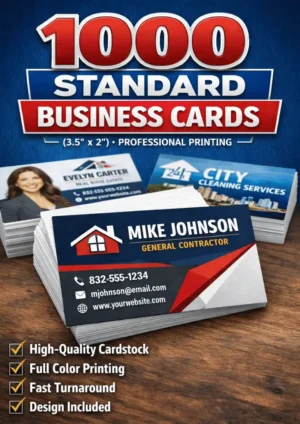
Our shop sells both the digital vCard and the 1000 standard business cards, so you can start with one and add the other. Send us your logo and details, a finished design or only an idea, and we prepare the print-ready files at the right size, create the design when you need one and show you a mockup. Nothing is printed until you approve it, and most standard orders are ready in 2–5 business days after approval. Larger or more complex orders may need more time; the quote confirms the date.
See custom business cards for the whole process, or message us if you are unsure what to order. We work in English and Spanish, with pickup in Houston or shipping across the U.S.
Quick checklist: what should you order?
- I meet customers in person at least some of the time, so I want printed cards
- My details change, or I have a lot to show, so I want a digital vCard as well
- My customers include people who prefer paper, so the printed card carries the essentials
- I know what the QR code will open, and I control that link
- I have scanned a printed sample with two phones
- I will review my vCard whenever something changes
Products mentioned in this guide
-
vCard
Digital vCard – Professional Contact Card
Original price was: $45.00.$35.00Current price is: $35.00. Add to cart
Frequently asked questions
Is a digital business card better than a paper one?
Neither is better in every situation. Paper works with no phone or signal and suits events, job sites, door-to-door visits and customers who prefer not to scan. Digital is easy to update and share by link, and it holds more information. Many small businesses do best with both: a printed card with a QR code that opens the digital one.
What is a vCard and how does a digital business card work?
A vCard is a standard contact file format, with the extension .vcf, that phones and email apps use to store a person's details. A digital vCard, or digital business card, is a contact page shared by link or QR code, with buttons to call, message or email you and an option to save your details to the phone.
Do I still need printed business cards if I have a digital one?
Often yes. Printed cards work when a phone is not part of the moment, such as at events, on job sites and door-to-door, and with customers who prefer paper. A printed card with a QR code that opens your digital card gives you both: something to hand over and a page with all the details.
Can I put a QR code on my business card?
Yes. Point it to one destination, such as your vCard, a WhatsApp chat or your website, and print it at least about 0.8 inch wide with a blank margin and dark-on-light colors. Add a short line saying why to scan, and scan a printed test with two phones before you order the full batch.
Can I update my digital business card after I share it?
Yes, that is its main advantage. The link and QR code stay the same while the details behind them change, so people who already have your link see the new information. How updates are handled depends on the product, and for ours the product page explains what is included.
Can people save my contact from a digital card?
Most digital business cards offer a save-contact button that downloads a .vcf file, so the person can add you to their phone contacts in one tap. Check that the card you choose includes it. The vCard in our shop lists a downloadable contact file on its product page.
Practical guides from our studio in Houston, Texas. We prepare your print-ready file, show you a mockup and print nothing until you approve it. Questions? Message us in English or Spanish. About us
More guides for you

Trucking Company Apparel: Drivers, Dispatch and Brand Trust
A practical guide to trucking company apparel in Houston: what each role wears, how to handle hi-vis and site rules, what to print and where, and how to keep a fleet outfitted as drivers come and go.
Flyer Design Tips: How to Make a 4×6 Flyer People Actually Read
A standard flyer is 4 x 6 inches. This guide covers the file size, a layout that works, simple copy, bilingual and QR code tips, and where to hand out flyers around Houston.

Cleaning Business Uniforms: What to Choose and How to Brand Them
How to uniform a cleaning crew in Houston: the best shirts for the heat, colors that hide everyday dirt, where the logo and phone number go, extras like caps and cards, and a sample spec to copy.
Tell us your idea — we make it real
Send your design, your idea or just a description. We prepare the file at the right size and personalize it for you — in English or Spanish, by message or on WhatsApp.